Storyboards
Storyboards
Visualise every shot before you step on set. Build, organise and share your storyboards directly inside your project.
Getting there Open your project and click Storyboards in the left sidebar.
Creating a storyboard Hit New to create a storyboard. Choose how many frames you want and the aspect ratio that matches your shoot - 16:9, 4:3, 2.39:1 and more. Hit create and your storyboard is ready to fill.
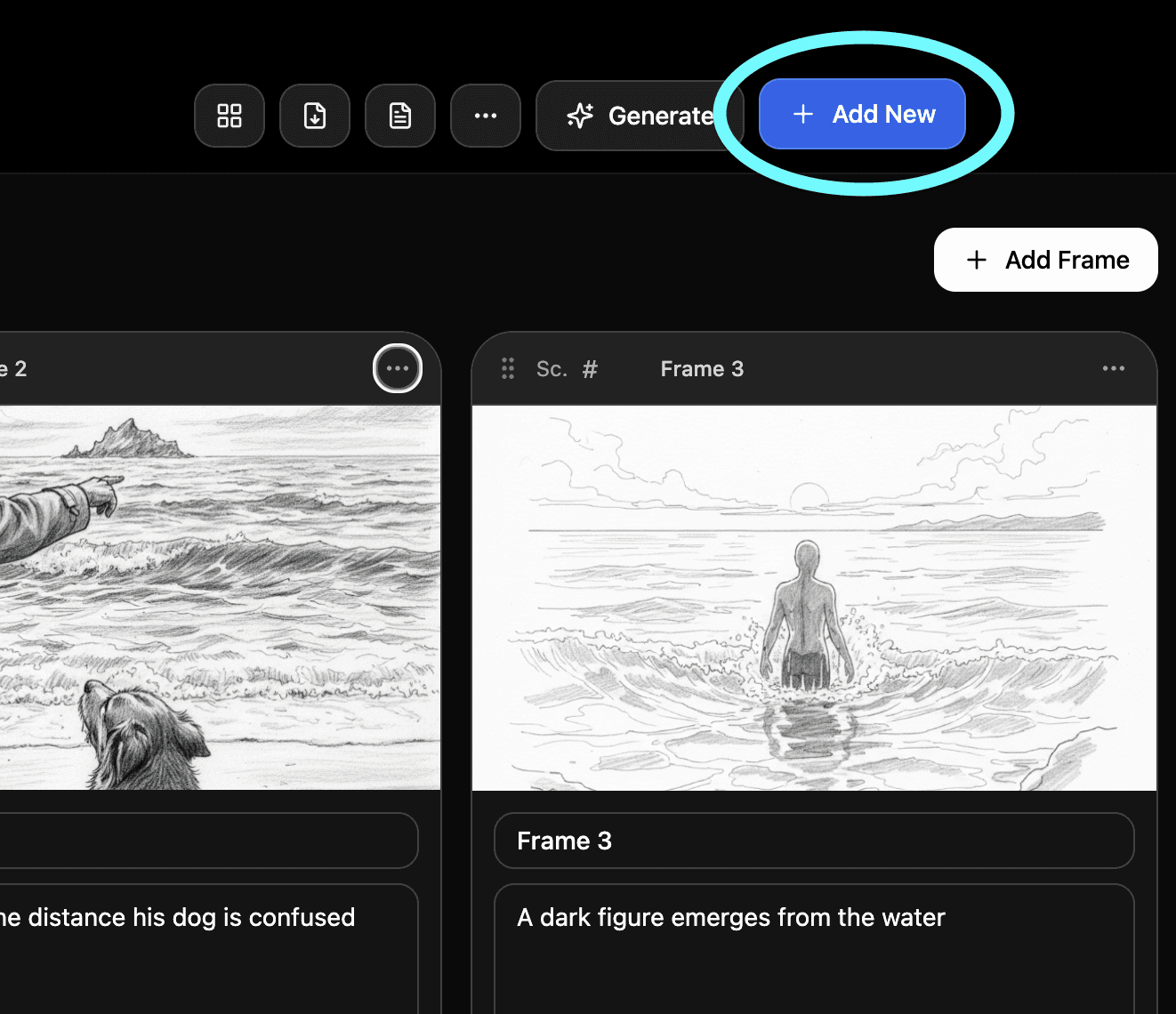
Adding images to your frames Click on any frame card to upload your own images. Sketches, reference photos, illustrations - anything works. If you're on a Pro or Studio plan you can also generate stencil style drawn images directly inside Shotly without needing to upload anything.
Frame descriptions Each frame has a description field underneath it. Use it to note the shot type, camera angle, action or anything your crew needs to know about that moment.
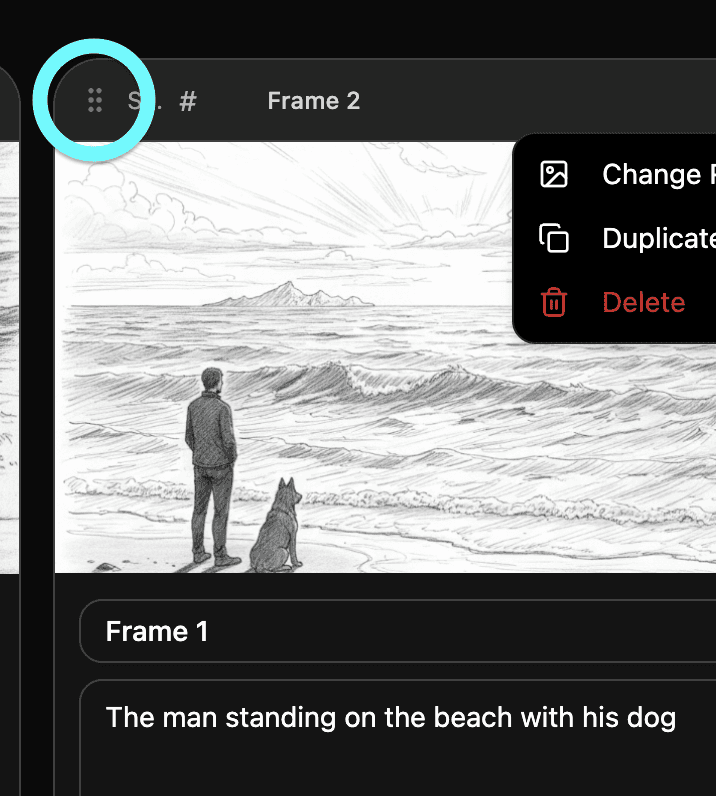
Rearranging frames Just drag and drop frames into the order you want. Simple as that.
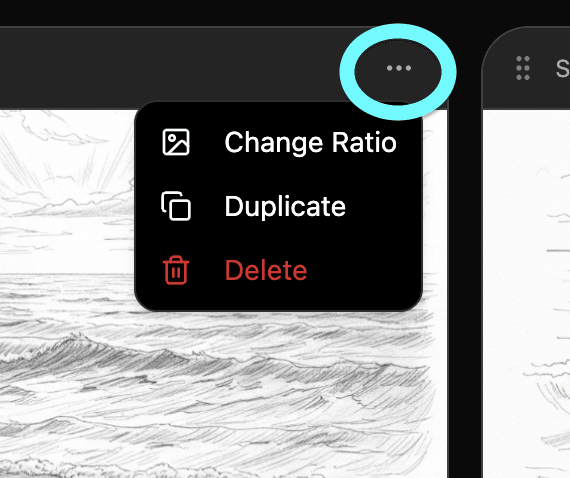
Frame options Click the three dots on any frame to duplicate it, change its ratio or remove it entirely.
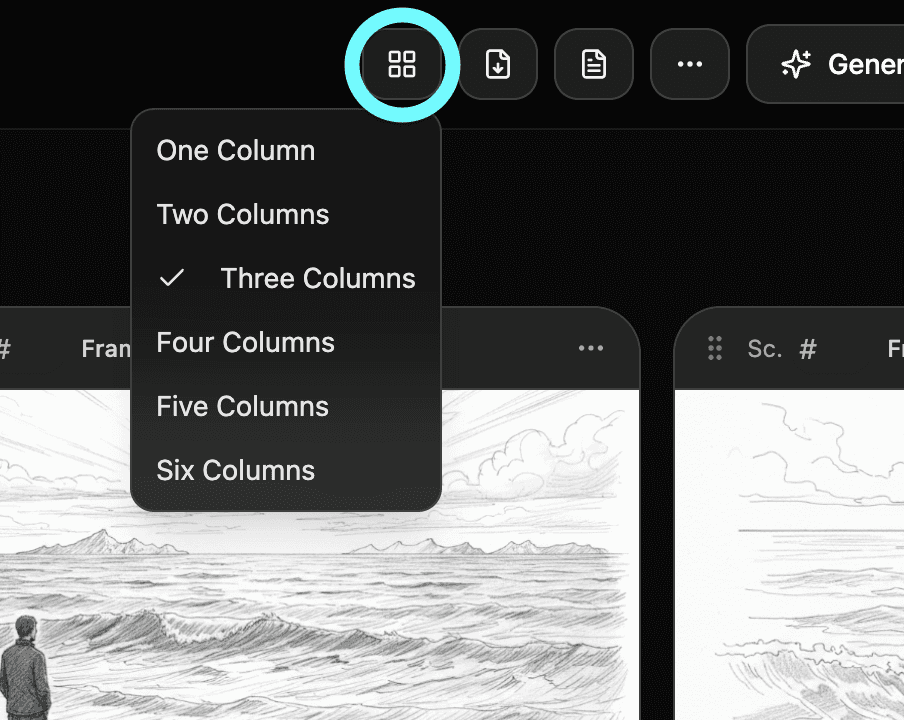
Import, export and ratios At the top of the screen you can import existing storyboard assets, export the whole storyboard as a PDF to share with your crew, and change the overall ratio of your storyboard at any time.
Archiving Finished with a storyboard but want to keep it? Archive it to keep your workspace clean without losing anything.
Need help? Contact us at support@shotly.io and we'll get back to you fast.