Downgrading your plan
You can downgrade your plan at any time but there are a few important things to know before you do.
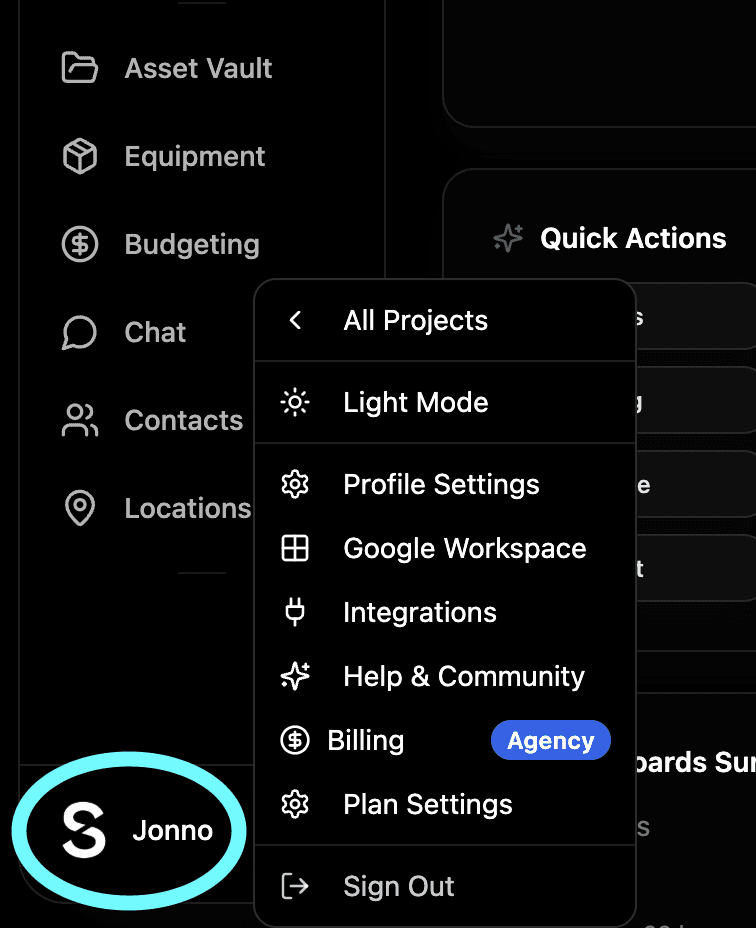
How to downgrade Click your profile picture, go to Billing and select the plan you want to move down to. Confirm through Stripe and your plan changes immediately.
You lose access straight away Unlike cancelling, when you downgrade you lose access to your higher tier features immediately rather than at the end of your billing period. Make sure you export anything you need - call sheets, budgets, invoices - before you confirm the downgrade. Now we don't delete your stuff we just remove your access to it. Account deletion is a whole other ballpark!
Too many users? If your new plan supports fewer users than you currently have you'll have 24 hours to remove the excess users yourself. If you don't remove them within that window Shotly will remove them automatically. We'd strongly recommend doing this yourself so you can choose who stays on the project.
Too many projects? Similarly if you're over the project limit of your new plan make sure you archive or export what you need before downgrading. Check the plan limits on our pricing page before confirming.
What you'll lose access to Any feature not included in your new plan becomes unavailable immediately. For example downgrading from Studio to Pro means losing access to Budgeting, Invoicing, Asset Vault, Equipment Tracking and Team Chat. Make sure you're prepared for that before confirming.